
Google Play Closed Testing Feedback: A Practical 14-Day Plan
Turn a closed test into useful app feedback with focused tester tasks, clear bug reports, real-device checks, and a record of what you changed.
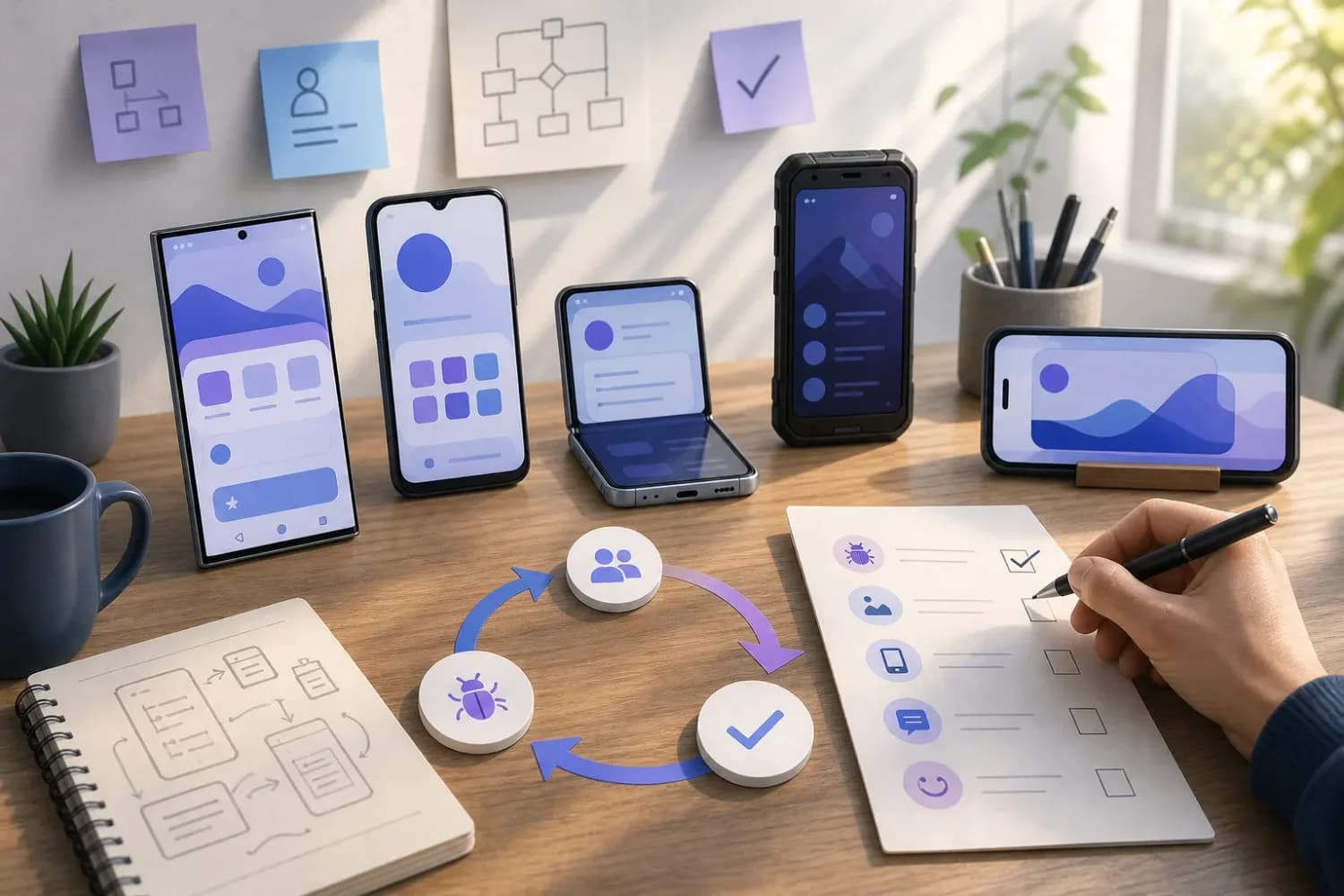
Getting 12 people into a closed test does not tell you whether your app works for its intended users. Google Play closed testing feedback is most useful when testers try realistic tasks, report what happened on their own devices, and can check whether your fixes worked.
For personal Play Console accounts created after November 13, 2023, Google requires at least 12 testers to remain opted in to a closed test continuously for 14 days before the developer can apply for production access. Meeting that threshold permits an application, not automatic approval. Google also asks about tester engagement, feedback, changes made, and production readiness. See Google’s testing requirements. (support.google.com)
What is Google Play closed testing feedback?
Closed testing feedback is what invited testers tell you after using a pre-release app. It can cover crashes, confusing screens, failed tasks, device-specific behavior, or features that do not meet their expectations. In a closed test, you control access through tester email lists or Google Groups. Testers can send private feedback through Google Play, and you can provide an email address or feedback URL on the opt-in page. They cannot leave public reviews for test versions. See Google’s closed-test setup instructions. (support.google.com)
A useful report says more than “it didn’t work.” It gives you enough context to reproduce or investigate the problem, then tells you whether the issue matters to the app’s core purpose.
Set up the test so feedback can reach you
In Play Console, open Test and release > Testing > Closed testing, manage the track, and use its Testers tab to select an email list or Google Group. Add a feedback email address or URL, save the changes, and share the test link. Each participant must opt in; being on an email list alone is not the same as opting in. If you use a Google Group, participants must join it before opting in. Google notes that an opt-in link appears only when the app’s status is Published, not Draft or Pending publication. Follow Google’s tester setup steps. (support.google.com)
Confirm that testers can install the release before assigning tasks. Ask them to keep the version they tested in each report. If someone has trouble joining, check the account they use for Google Play, their access to the list or group, the app’s status, and the link you sent. Do not treat an invitation or an attempted install as confirmation that a tester has opted in.
Give testers tasks, not a script for praise
Pick a small set of actions tied to what the app promises. For a budgeting app, that might mean creating a category, entering an expense, editing it, and finding the updated total. For a booking app, it might mean searching, choosing an option, and stopping before any real payment. Use test accounts or safe test data when a flow involves personal information or transactions.
Send testers a brief with three parts:
- Start from a defined state. Say whether they should use a fresh install, an existing account, or a supplied test account.
- Try a normal task in their own way. State the goal without prescribing every tap. This leaves room to spot confusing navigation.
- Try one edge case. Examples include denying a permission, rotating the device, losing connectivity, or returning to the app later. Choose cases your app actually needs to handle.
Ask what they expected, what happened instead, and where they got stuck. Invite comments even when a task succeeded but felt difficult. Avoid telling testers what conclusion to reach or asking for fabricated activity. Google’s production-access questions ask whether testers used available features and whether their behavior resembled expected production use. Read the application questions. (support.google.com)
Turn real-device reports into fixable issues
Use one consistent report format, whether feedback arrives by email or another channel. Ask for:
- The task and the steps taken before the issue.
- Expected and actual results.
- Device model, Android version, and app version, if the tester can provide them.
- A screenshot or screen recording when useful, with sensitive information removed.
- Whether the problem happens again and whether it blocks the task.
Make extra detail optional if requesting it would stop someone from reporting at all. A short account of a confusing screen is still valuable; you can ask follow-up questions later.
Keep a simple issue log with a status such as new, reproducing, fixing, ready to retest, or closed. Group duplicate reports, but preserve device details. Prioritize failures in core flows and issues that affect trust, such as lost data, ahead of minor visual defects. Record what you could not reproduce rather than marking it fixed.
Use the 14 days as a feedback loop
Treat this as a planning example, not a Google-prescribed schedule. Early in the test, verify access and ask testers to complete core tasks. Next, review reports, reproduce important failures, and release fixes to the closed track when ready. Leave time for testers to retry the affected flows and tell you whether the change helped.
Check Play Console’s pre-launch report alongside human feedback. When available, it can flag stability, performance, compatibility, and accessibility issues. Google says report generation is subject to device-lab capacity, and its automated crawl cannot be expected to find every issue. A clean report is not a substitute for someone trying a real workflow on their device. See how pre-launch reports work and their limitations. (support.google.com)
Watch the opt-in requirement separately from your issue log. If a tester opts out and returns later, their 14 days must be consecutive to count toward the minimum. Opt-in duration alone also does not demonstrate meaningful engagement: Google says insufficient engagement can lead to a request for more testing. Review Google’s eligibility and follow-up guidance. (support.google.com)
Prepare an honest production-access summary
Before applying, write down how you recruited testers, what they tried, how you collected feedback, which problems you fixed, and what remains open. Explain any gap between tester behavior and expected user behavior. If a feature was not exercised, say so and decide whether it needs another round of testing.
Google’s application asks developers to summarize feedback and describe changes made because of the closed test. It also asks how they determined the app was ready for production. Use your issue log to answer those questions accurately, not to claim coverage you do not have. Google decides whether to grant production access and may require continued testing. Review the production-access process. (support.google.com)
If organizing a group of real testers is the difficult part, 12Testers can help you organize closed testing and collect app feedback. For more planning guidance, see the 12Testers guides. Your release decisions, policy compliance, and production-access application remain your responsibility.
FAQs
Does Google Play require closed testers to use my app every day for 14 days?
Google’s stated minimum is 12 testers continuously opted in for at least 14 days for affected personal accounts. Its production-access review also considers engagement, so plan for genuine use and feedback rather than treating the opt-in count as the whole test. See the official requirements. (support.google.com)
Where can Google Play closed testers submit private feedback?
They can submit private feedback through Google Play. You can also place a feedback email address or URL on the tester opt-in page. Test-version users cannot post public Play reviews. See Google’s feedback options. (support.google.com)
What should I ask a closed tester to include in an Android bug report?
Ask for the task, steps, expected and actual results, app version, and device details when available. A screenshot can help if it does not reveal sensitive data. Follow up when a report is unclear rather than discarding it.
Will fixing every reported issue guarantee Google Play production access?
No. The closed test supports your application, but Google reviews the submission and decides whether to grant access. Describe what you fixed, what you tested again, and any known limitations without promising an outcome. See Google’s review process. (support.google.com)
Sources
- Google Play Console Help: App testing requirements for new personal developer accounts
- Google Play Console Help: Set up an open, closed, or internal test
- Google Play Console Help: Use a pre-launch report to identify issues
- Google Play Console Help: Understand your pre-launch report